
-
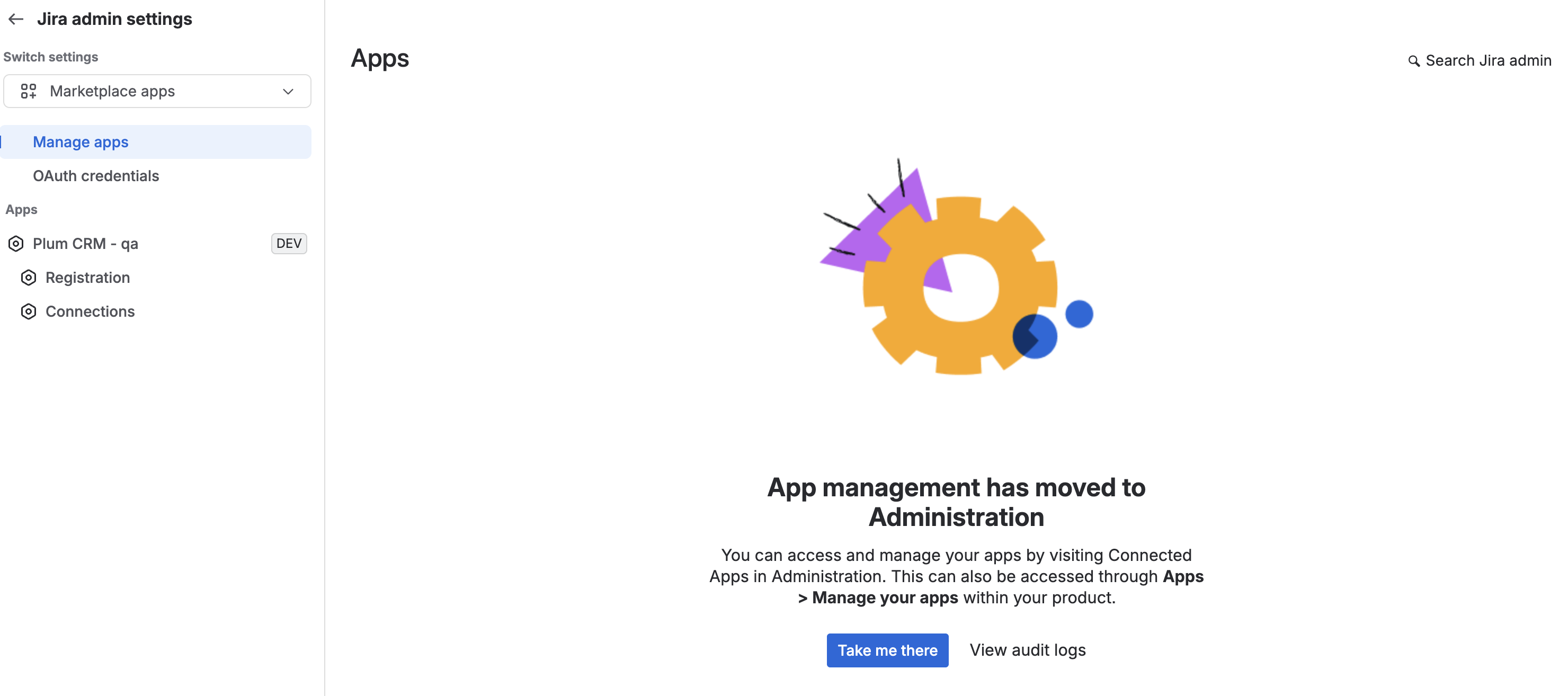
In the left sidebar, click on the ellipsis next to Apps and select “Manage apps”
-
In the left sidebar, click on the “Plum CRM” app and then select “Registration”
-
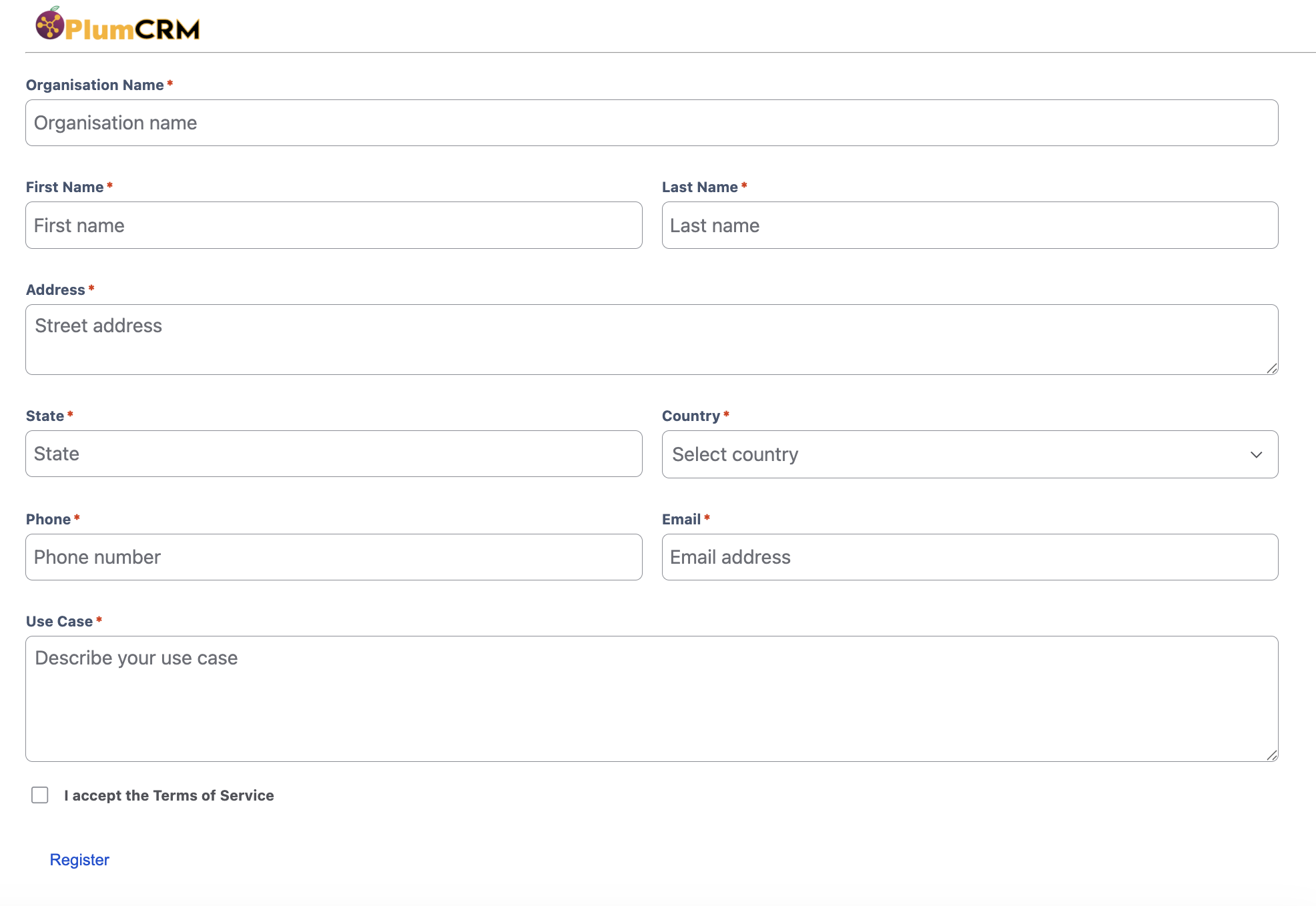
Click the Registration menu. All fields are required. Read and agree to the Terms of Service. (Note: Without completing registration, you can't proceed with further configuration)
-
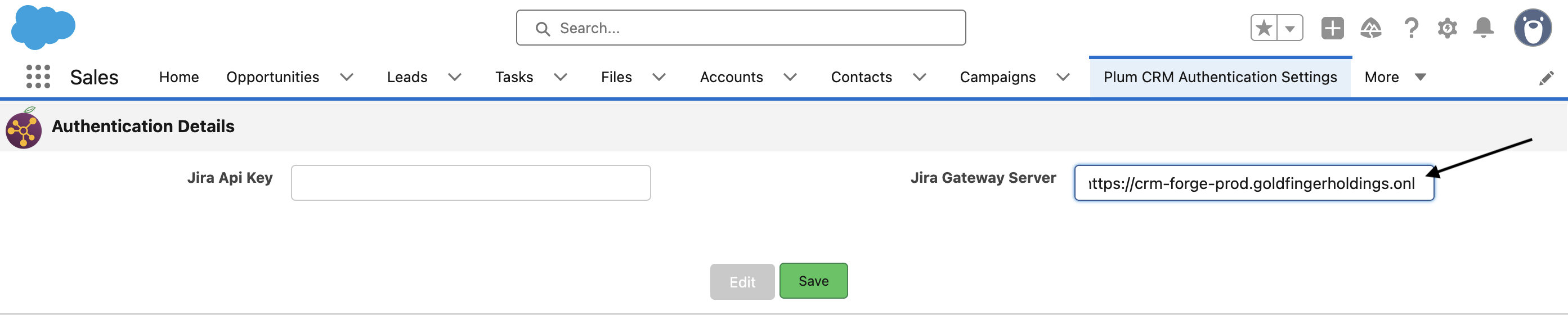
Update the Jira Gateway Server configuration in Salesforce to use Forge instead of the connect gateway server.
Step 1: Go to Salesforce and open Plum CRM Authentication Settings.
Step 2: Enter Jira Gateway Server as https://crm-forge-prod.goldfingerholdings.onl
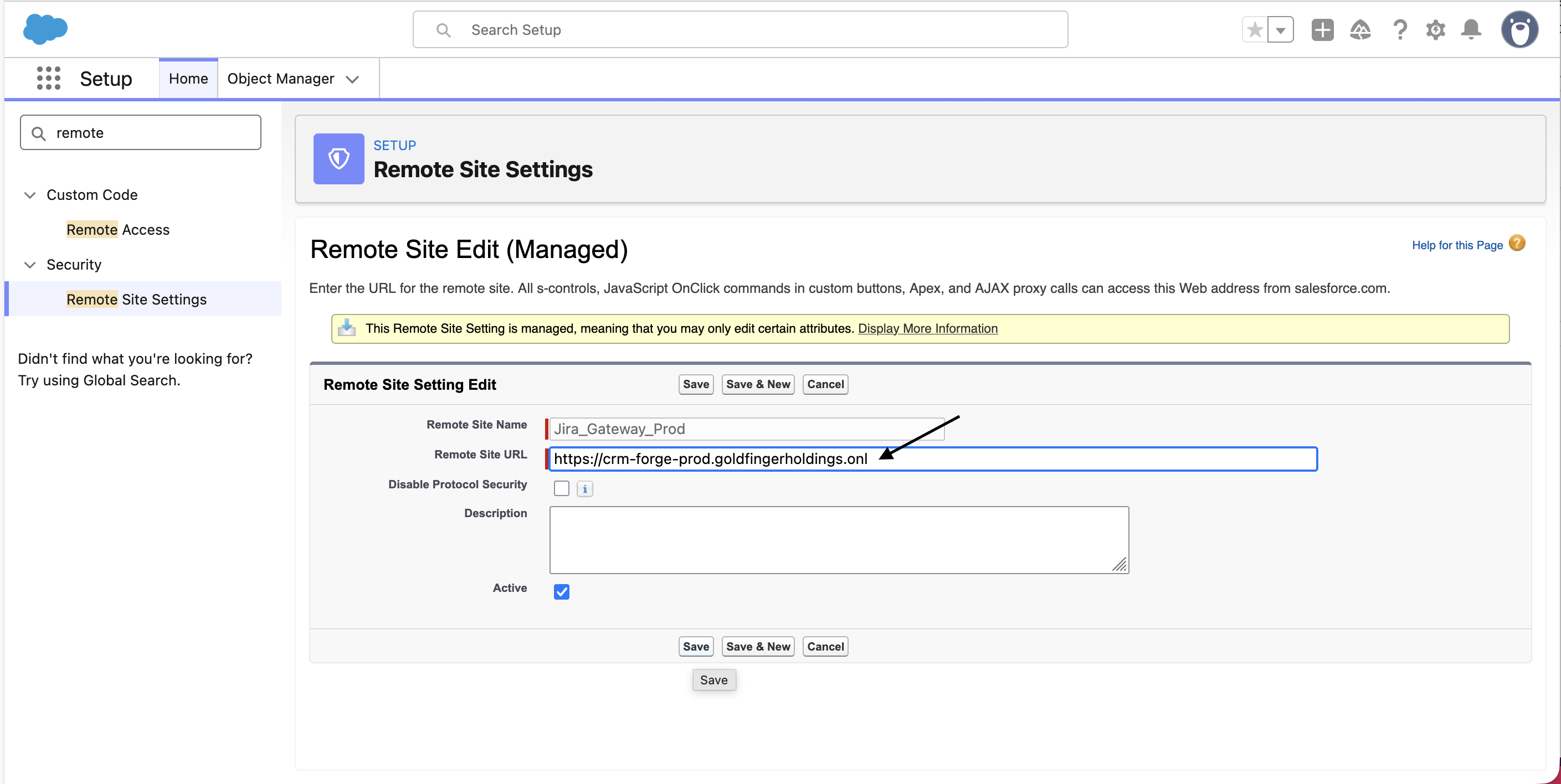
Step 3: Go to Setup and search for Remote Site Settings.
Step 4: In the column Remote Site Name, find the row Jira_Gateway_Prod and click Edit.
Step 5: Update the Remote Site URL as https://crm-forge-prod.goldfingerholdings.onl
Next Step: Create a connection