General Assistance
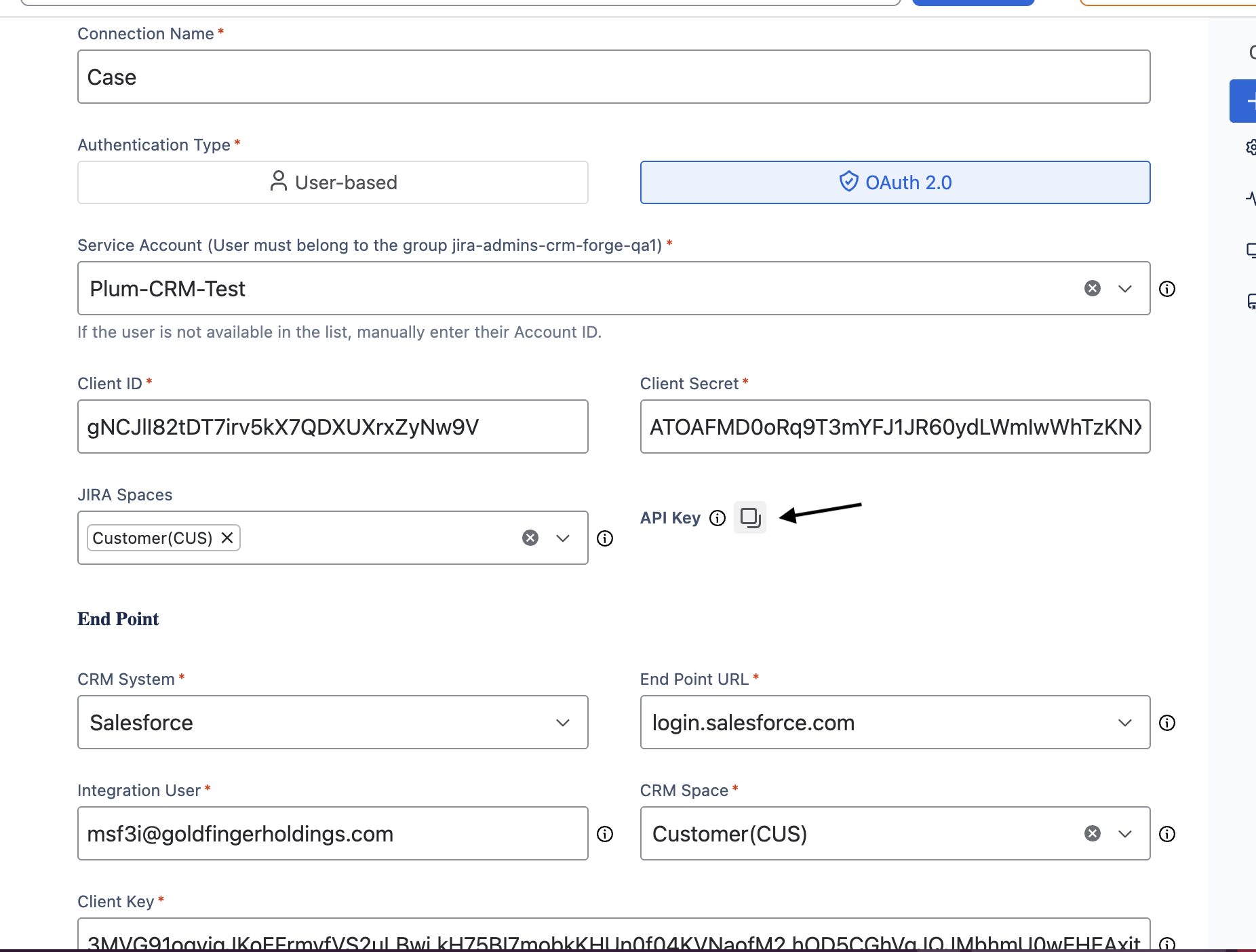
Finding the Jira API Key
If the connection is successful, you can copy the api key from the connections, as shown in the screenshots below.
How To Enable CRM Details panel
-
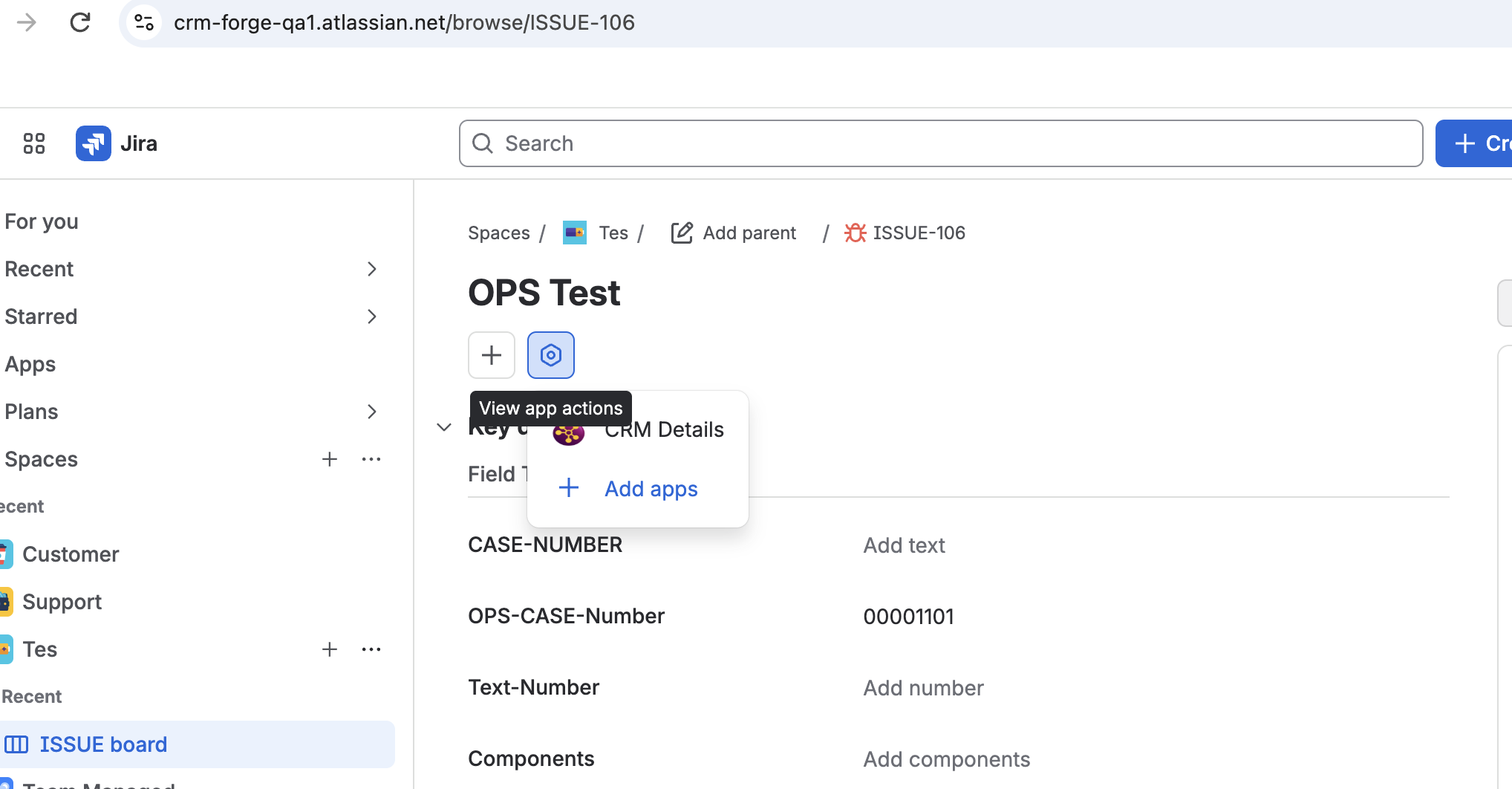
Open any Jira ticket that is already linked to a Salesforce case.
-
Click View App Actions.
-
Select CRM Details, as shown in the screenshots below.
-
Once the CRM Details panel opens, you will be able to view the linked Salesforce case.
-
Click the three-dot menu and select Show for all work items.
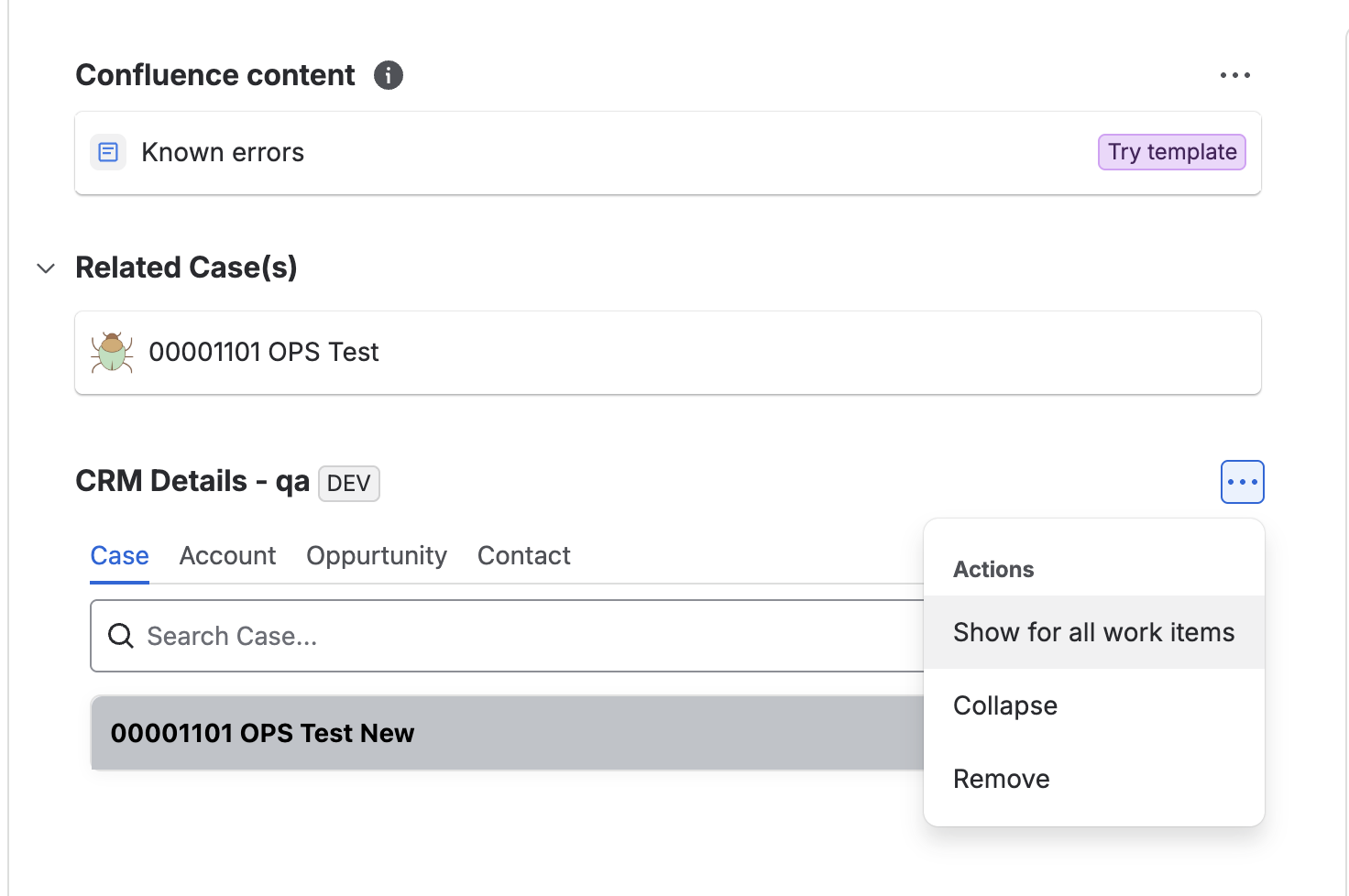
After completing these steps, you can access the CRM Details panel across all Linked Jira work items.
Newly Created Custom Field Not Available for Field Mapping
Newly created custom fields may not appear immediately in the field mapping options due to cached metadata. To make the newly created custom fields available, you need to clear the cache for the respective connection.
Steps to resolve the issue:
-
Navigate to Connections and select the connection where the custom fields need to appear in the field mapping options.
-
Go to the Advanced tab.
-
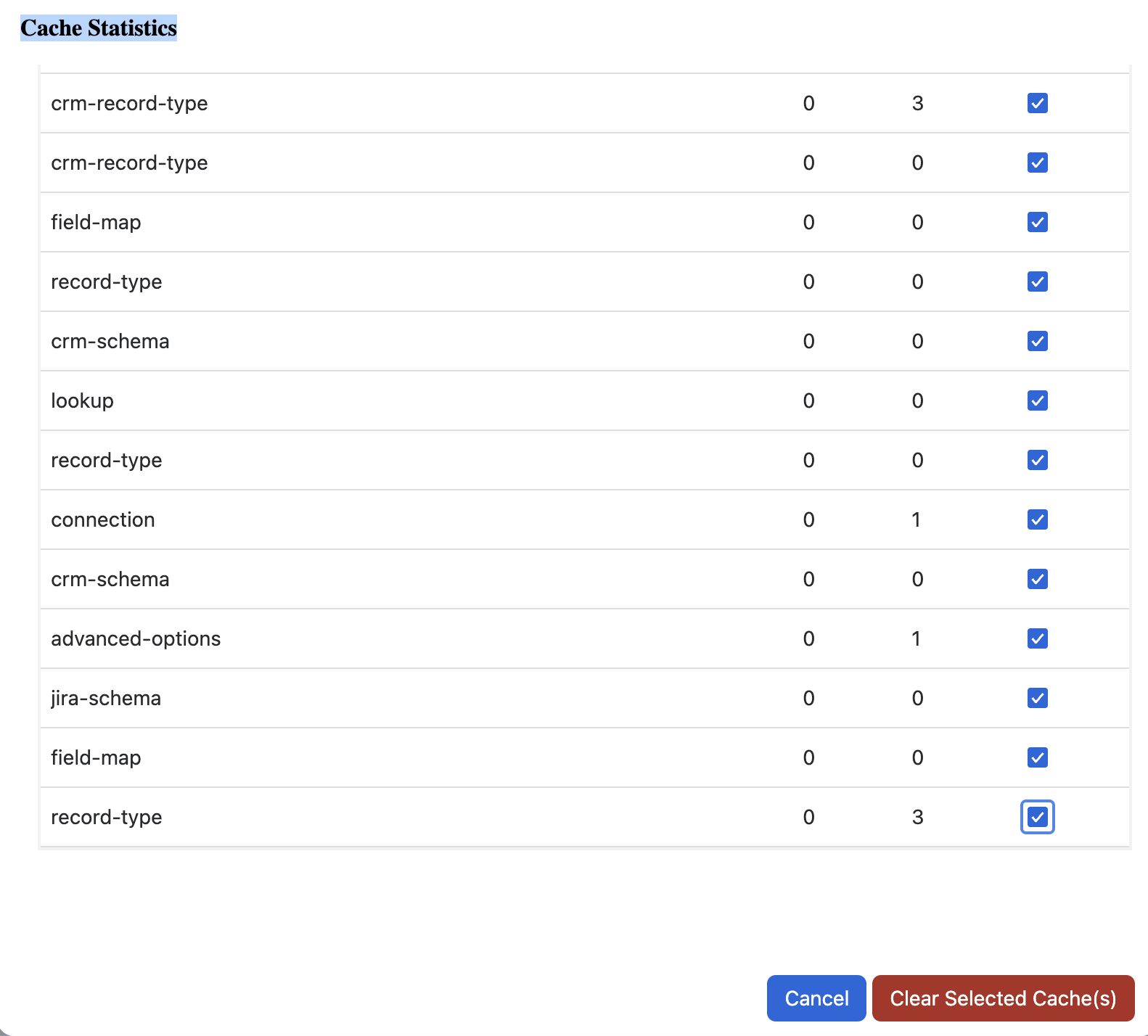
Click on Cache Statistics.
-
Select the checkboxes for all the available fields.
-
Click Clear Selected Cache(s), as shown in the screenshots below.
-
Navigate back to the field mapping section and verify that the newly created custom fields are now available in field mapping.