
Once you have pressed “SAVE & TEST CONNECTION,” if validation is successful, a default connection, record mapping, and field mapping will be created for you. You can follow the steps in the “Records” and “Field Mapping Options” below to further configure your settings.
If you prefer not to use the default settings, click the Add Record button and enter a unique name, as illustrated in the screenshot below.
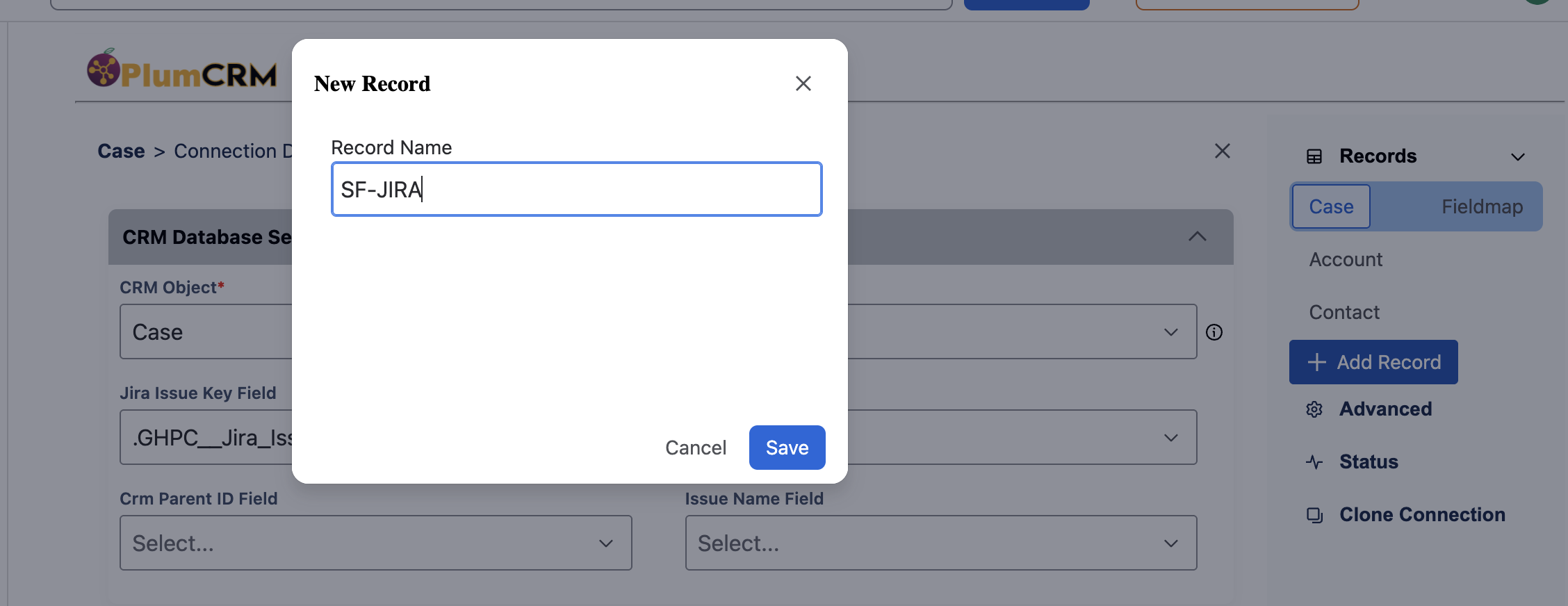
|
Option Name |
Description |
Notes |
|
Name |
Name to uniquely identify this CRM Record Definition |
|
|
CRM Object |
Table name in the CRM database which contains the records that JIRA issues will be linked with. |
For example, Case |
|
Jira Issue Type |
Jira issue type which contains the record that the CRM issue will be linked with. |
For example, Bug |
|
CRM Parent Object |
If you want to link multiple JIRA issues to a single CRM record (a.k.a. many-to-one) you can use a CRM custom object to hold the data from all the linked JIRA issues. One or more JIRA issues will be linked to a single record in the parent object (the 'CRM Object' field) and a record will be created in this child object for each JIRA issue. |
For example:
And pressing the Create/Update Jira button on a Case will create a Jira record and its linked to a new child record (that’s linked to the Case). |
|
CRM Parent ID Field |
For many-to-one choose the field that links the child object to the parent object. |
For example Case__c |
|
Issue Name Field |
For many-to-one choose the field in the parent object that will be used to set the name of the child object. |
For example Subject |
|
Editable By |
Jira user group is permitted to change the CRM records linked to an issue. |
|
|
Viewable By |
Jira user group permitted to view the values from the linked Salesforce record |
|
|
Display Fields |
When viewing an issue in JIRA that is linked to CRM, these are the values displayed. You can specify custom screen labels by using parenthesis after each field. |
Example: "Name(Name), email_address(Email)". Display multiple fields together using square brackets. Example: "[FirstName, LastName](Name)" |
|
Name Fields |
Name of field(s) used for displaying and sorting this record. |
|
|
Search Fields |
Name of text field(s) used for searching for a CRM record. Used by the CRM search while editing an issue in JIRA. |
|
|
URL |
A URL used to link CRM info on JIRA screens to the record in the CRM system. Put CRM field names inside curly braces where you need to insert CRM values. |
For example: https://login.salesforce.com/{Id}. '{Id}' will be replaced with the appropriate CRM record id |
|
Where Clause |
A Salesforce SOQL expression used to limit the CRM records that are listed when searching for CRM records on JIRA's CRM Details screen. |
Example: Type='Prospect'. Note that the Cron Service is not affected by this setting, it has its own setting below. |
|
Issue Condition |
This feature gives you a way to automatically create a new CRM record when a specified condition is met for an issue in JIRA. A new CRM record is only created if the issue is not already linked to a CRM record of this type and the issue meets the condition specified here. |
The JQL Picker is used to help the user create a valid JQL and see the search results |
|
Sync Jira Comments To CRM |
Always, Sometimes, Never |
If set to Sometimes the comment will be synched if the comment body contains the tag #crm |
|
Sync Comments As |
Chatter or Case Comments |
|
|
Sync Comments As |
Private or Public |
|
|
Delete Jira Comments When CRM Comment Is Deleted |
Yes or No |
|
|
Comment Title |
An optional title for comments sent to CRM. The tokens {FULLNAME}, {DATETIME}, and {KEY} may be added to the title. |
|
|
Sync CRM Comments To Jira |
Always, Sometimes, Never |
If set to Sometimes the comment will be synched if the comment body contains the tag #jira |
|
Delete Jira Comments When CRM Comment Is Deleted |
Yes or No |
|
|
Delete Private CRM Comment After Its Synched To Jira |
Yes or No |
|
|
Comment Title |
An optional title for comments sent to Jira. The tokens {FULLNAME} and {DATETIME} may be added to the title. |
|
|
Sync Jira Attachments To CRM |
Always, Never |
|
|
Sync Attachments To |
|
“Sub Record Attachments” can be used when One Crm To Many Jira is on. |
|
Delete Synced Attachments |
Yes or No |
Should the CRM attachment be deleted when the related Jira attachment is deleted |
|
Sync Attachments To Jira |
Always or Never |
|
|
Delete Synced Attachments |
Yes or No |
Should the Jira attachment be deleted when the related CRM attachment is deleted |
Next Step: Field Map Options